Ultimate Triple Monitor Cockpit Setup for Immersive Gaming
So, you’re wondering how to build the ultimate triple monitor gaming setup for truly immersive play? The short answer is: it involves a well-thought-out combination of powerf…
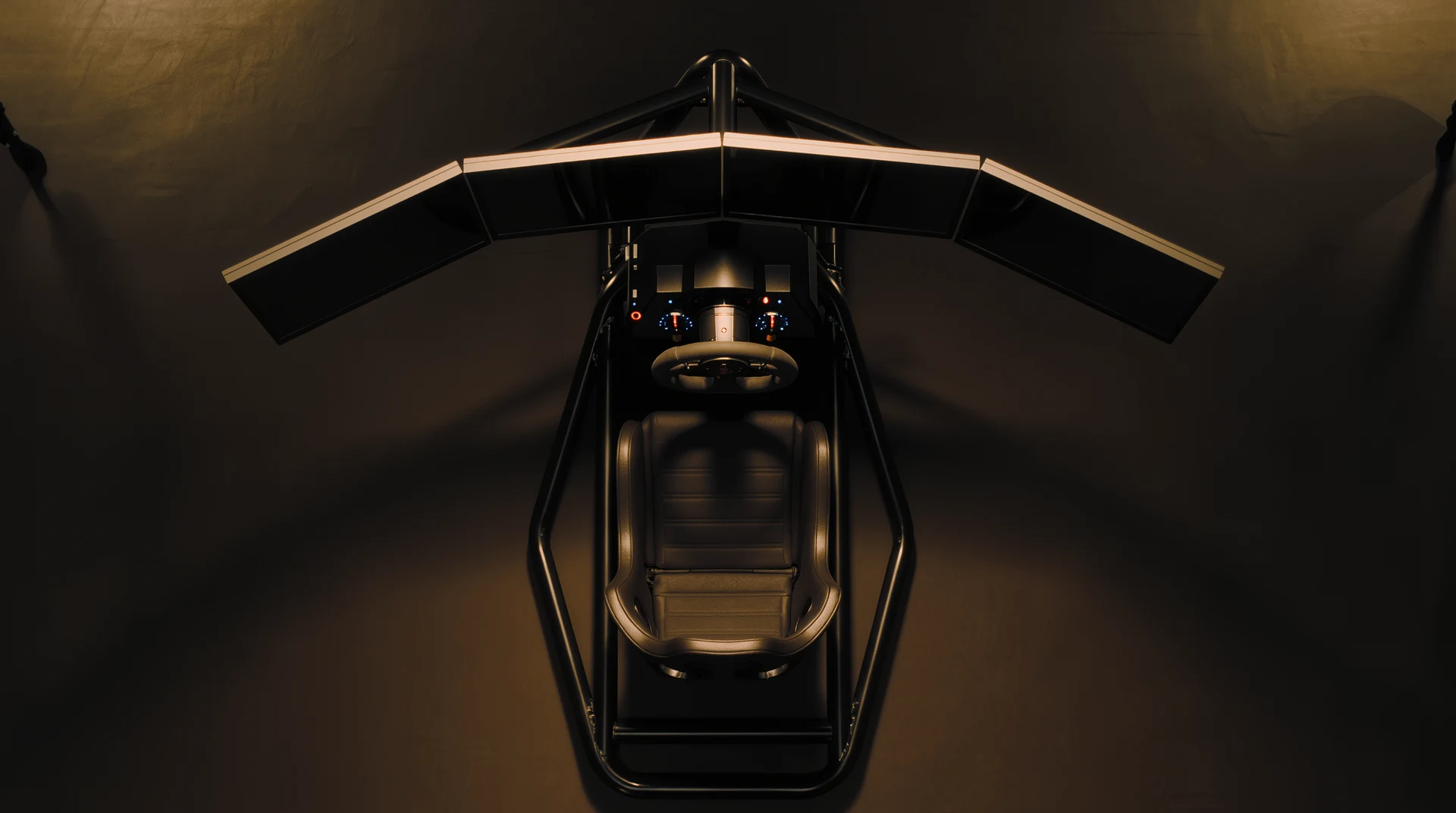
So, you’re wondering how to build the ultimate triple monitor gaming setup for truly immersive play? The short answer is: it involves a well-thought-out combination of powerful hardware, strategically placed displays, and careful configuration to create a seamless, wide-angle gaming experience. It’s not just about slapping three monitors on your desk; it’s about making them work together beautifully to pull you right into the game.
Why Go Triple? The Immersive Edge
Stepping up to a triple monitor setup isn’t just about showing off; it fundamentally changes the gaming experience. Instead of being confined to a single window, your peripheral vision is suddenly engaged, giving you a much broader view of the action. This added visual real estate can be particularly impactful in racing sims, flight simulators, and first-person shooters, where seeing more of your surroundings can translate to better awareness and, let’s be honest, a much cooler experience. You’ll notice details you never did before, like a car closing in on your side mirror or an enemy lurking just outside your central view. It truly does feel like you’re in the game, rather than just looking at it.
Core Components You’ll Need
Building this kind of setup requires a bit more than your standard gaming rig. We’re talking about components that can handle pushing pixels across a much larger canvas. Skimp here, and you’ll end up with a beautiful but stuttering experience.
The Graphics Card (GPU) is King
This is arguably the most crucial component. A single monitor at 1080p is one thing; three monitors, especially if they’re high resolution (like 1440p or even 4K), demand serious horsepower. You’re effectively asking your GPU to render three times the number of pixels, or close to it depending on your resolutions and aspect ratio.
- Understanding Resolution and Performance: If you’re aiming for three 1080p monitors, a high-end to enthusiast-tier GPU from the last couple of generations (think RTX 3070/3080/4070/4080 or RX 6700XT/6800XT/7800XT/7900XT and above) should handle it well in most games. Step up to three 1440p monitors, and you’re firmly in the RTX 4080/4090 or RX 7900 XTX territory if you want to maintain high frame rates with demanding titles. For 4K, well, that’s a whole different beast and often borders on unachievable for smooth triple-monitor gaming without significant compromises on graphical settings, even with the absolute best cards available. Generally, aim for the highest-tier GPU you can reasonably afford within your budget after accounting for the monitors themselves.
- VRAM Matters: With multiple monitors, especially at higher resolutions, your GPU’s video memory (VRAM) becomes more important. Games load more textures and assets into VRAM to facilitate that wider field of view. Aim for at least 12GB of VRAM for 1080p triple setups, and preferably 16GB or more for 1440p to ensure smooth performance without stuttering caused by VRAM limitations.
- Output Ports: Make sure your chosen GPU has enough display outputs (DisplayPort or HDMI) to connect all three monitors. Most modern high-end GPUs come with three or four ports. If it only has two, you’ll need to look at alternatives like DisplayPort MST hubs, but these can add complexity and potential latency, so direct connections are always preferred.
Power Supply Unit (PSU)
A beefy GPU needs a beefy PSU. Don’t skimp here. Calculate your total system wattage using an online PSU calculator, remembering to factor in the power draw of your chosen GPU, CPU, and other components. Add a healthy buffer (15-20%) for headroom and efficiency. For high-end GPUs needed for a triple monitor setup, you’re likely looking at 850W, 1000W, or even 1200W PSUs, especially if you plan any overclocking. A stable and efficient power supply prevents crashes and ensures component longevity.
Processor (CPU)
While the GPU does most of the heavy lifting for rendering pixels, the CPU still plays a crucial role in feeding data to the GPU and handling game logic. A modern mid-range to high-end CPU (e.g. Intel Core i5/i7/i9 or AMD Ryzen 5/7/9 from the last few generations) will typically be sufficient. You don’t necessarily need the absolute top-tier CPU unless you’re also streaming or running other intensive tasks simultaneously. The key is to avoid CPU bottlenecks that would prevent your powerful GPU from reaching its full potential. Look for strong single-core performance and a decent core/thread count.
The Monitors: Selection and Placement
This is where your vision for the cockpit truly comes to life. Choosing the right monitors and arranging them effectively is key to a seamless experience.
Monitor Specifications
When selecting your monitors, aim for consistency across all three. Using mismatched monitors in terms of resolution, refresh rate, or panel type can introduce visual inconsistencies that break immersion.
- Resolution: As mentioned, 1080p is the most accessible, 1440p offers a significant upgrade in clarity, and 4K is extremely demanding. Choose based on your GPU budget and performance expectations.
- Refresh Rate: High refresh rates (144Hz, 165Hz, 240Hz) make motion appear smoother and more responsive, which is particularly beneficial in fast-paced games. Aim for at least 144Hz on all three if your GPU can push those frames consistently.
- Panel Type:
- IPS (In-Plane Switching): Best for color accuracy and wide viewing angles, which is important when viewing screens from slightly off-center. They often have slightly slower response times than TN panels but significant improvements have been made.
- VA (Vertical Alignment): Offers excellent contrast and often deeper blacks than IPS, making them great for immersive, dark scenes. Viewing angles are generally good, but sometimes not as wide as IPS, and ghosting can be an issue on cheaper VA panels.
- TN (Twisted Nematic): The fastest response times, making them popular for competitive gaming, but suffer from poor color reproduction and narrow viewing angles. Less ideal for a cohesive triple-monitor experience where you’re looking at different angles.
- OLED (Organic Light-Emitting Diode): The current king of image quality with infinite contrast, perfect blacks, and incredibly fast response times. However, they are significantly more expensive and carry a risk of burn-in, though recent generations have greatly improved longevity. If budget allows, three OLEDs are stunning.
- Response Time: Look for 1ms GtG (Gray-to-Gray) for the best motion clarity, especially important with high refresh rates to minimize ghosting.
- Adaptive Sync (G-Sync/FreeSync): Essential for a smooth, tear-free experience by synchronizing the monitor’s refresh rate with your GPU’s frame rate. Ensure all three monitors support the same standard (NVIDIA’s G-Sync Compatible/Native or AMD’s FreeSync Premium/Pro) and that your GPU supports it.
Monitor Size and Curvature
- Size: Common sizes for triple monitor setups are 27-inch and 32-inch. 27-inch monitors at 1440p offer a great pixel density, while 32-inch at 1440p can feel a bit less sharp but offer larger visuals. Going too large can make it difficult to comfortably view all three screens without excessive head movement.
- Curved vs. Flat: Curved monitors can enhance immersion by wrapping the image around you and making the edges of the side monitors feel more natural. If going curved, ensure all three monitors have the same radius of curvature (e.g. 1000R, 1800R). Blending flat monitors can sometimes result in sharper angles at the edges of your peripheral vision, but they are generally less expensive. For a true cockpit feel, curved screens are often preferred due to how they subtly encompass your field of view.
Mounting Solutions
Proper mounting is critical for precise alignment and maximizing desk space.
- Desk Mounts:
- Triple Monitor Desk Mount: A single stand that clamps to your desk and holds all three monitors. These are convenient but can sometimes be less flexible for precise individual monitor adjustment. Look for sturdy options that can handle the weight of your chosen monitors.
- Individual Monitor Arms: Three separate monitor arms (VESA compatible, of course) clamped to your desk. This offers the most flexibility for positioning each monitor precisely, allowing for subtle angling and height adjustments to perfectly align the bezels. This often provides the cleanest look and best adjustment.
- Wall Mounts: If you have a dedicated gaming space and want to free up desk space entirely, wall mounting is an option. This requires more planning and installation effort but can provide a very clean aesthetic.
- VESA Compatibility: Ensure your chosen monitors and mounting solution are VESA compliant (e.g. 75x75mm or 100x100mm) for easy and secure attachment.
Arranging Your Battle Station
This isn’t just about plugging things in; it’s about optimizing the physical layout for maximum immersion and comfort.
Monitor Alignment and Bezel Management
The goal is to create as seamless an image as possible across all three screens.
- Angle the Side Monitors: The side monitors shouldn’t be flat. Angle them inwards, typically between 30 and 45 degrees, to wrap the image around you. The exact angle will depend on your seating position and monitor size. Experiment until it feels natural and the perspective distorts minimally.
- Height Consistency: Ensure the bottom edges of all three monitors are perfectly aligned. Even a slight height difference can be distracting. A good monitor arm system makes this much easier.
- Bezel Minimization: While you can’t eliminate bezels, you can minimize their impact. Some monitors feature “bezel-less” or “thin-bezel” designs. Position them as close together as physically possible. If your monitors have VESA mounts near the edge, this can help them get even closer. NVIDIA “Bezel Correction” (and similar features in AMD drivers) can digitally stretch the image to compensate for the bezel gaps, making the image appear continuous, though it will slightly distort the perspective at the bezel line.
Seating Position and Ergonomics
You’ll be spending a lot of time here, so comfort is paramount.
- Central Alignment: Your primary viewing spot should be directly in front of the center monitor.
- Distance: Sit at a comfortable distance where you can see the entire span of monitors without excessive head turning, but close enough for the immersion to work. A good rule of thumb is that the top of your center monitor should be roughly at eye level.
- Chair: Invest in a comfortable, ergonomic gaming chair.
- Desk Space: A large, sturdy desk is crucial to accommodate the monitors, stand, and your peripherals.
Software Configuration and Optimization
Hardware is half the battle; getting the software to play nice is the other.
NVIDIA Surround and AMD EyeFinity
These are the proprietary technologies that allow your GPU to treat multiple monitors as a single, ultra-wide display.
- NVIDIA Surround (NVIDIA GPUs):
- Driver Installation: Ensure you have the latest NVIDIA GeForce drivers.
- NVIDIA Control Panel: Right-click on your desktop and open the NVIDIA Control Panel.
- Configure Surround, PhysX: Under “3D Settings,” select “Configure Surround, PhysX.”
- Enable Surround: Check the box that says “Span displays with Surround.”
- Monitor Selection: Select the monitors you want to use. You’ll need to identify them by checking the boxes.
- Topology: Select “1×3 Portrait” or “1×3 Landscape” depending on your monitor orientation. Landscape is most common for gaming.
- Resolution: Set the desired combined resolution (e.g. 5760×1080 for three 1080p monitors).
- Bezel Correction: NVIDIA Surround includes a “Bezel Correction” option. This will slightly stretch the image behind the physical bezels, making the image appear continuous. Follow the on-screen prompts to measure your bezel width accurately. This is a game-changer for immersion.
- Finish: Apply the settings. Windows will now see your three monitors as one large display.
- AMD EyeFinity (AMD GPUs):
- Driver Installation: Ensure you have the latest AMD Radeon Software drivers.
- Radeon Software: Open the Radeon Software application.
- Display Tab: Navigate to the “Display” tab.
- AMD Eyefinity: Look for the “AMD Eyefinity” section and click “Quick Setup” or “Custom Setup.”
- Arrangement: Follow the prompts to arrange your displays into a single group.
- Resolution: Set the combined resolution.
- Bezel Compensation: AMD Eyefinity also offers bezel compensation. You’ll be prompted to provide measurements for your bezels to properly align the image.
- Apply: Apply the settings.
In-Game Settings
Even with Surround or EyeFinity enabled, some games require careful tweaking.
- Aspect Ratio: Choose the correct ultra-wide aspect ratio in-game (e.g. 48:9 for three 16:9 monitors). If a game doesn’t natively support this, it might stretch the image or black out the side monitors.
- Field of View (FOV): This is crucial. A low FOV on a triple monitor setup will look incredibly distorted, like looking through binoculars. Increase the FOV until the perspective feels natural and the side monitors provide useful peripheral vision without excessive stretching. Many games have in-game FOV sliders, and some even have specific ultra-wide FOV calculators or settings. You might need to experiment to find your personal sweet spot.
- UI Placement: Some game HUD elements might be stretched uncomfortably far into your peripheral vision on an ultra-wide setup. Look for options to move or scale the UI closer to the center screen. This isn’t always available, but it improves usability when it is.
- Game Compatibility: Not all games are created equal. Modern triple-A titles often support ultra-wide resolutions well, but older games or indie titles might require community patches or workarounds (like using tools like Flawless Widescreen) to function correctly. Do a quick search for “[Game Name] triple monitor support” if you encounter issues.
Operating System Tweaks
Windows itself generally handles the combined display well once Surround/EyeFinity is set up.
- Taskbar: The Windows taskbar will likely span all three monitors. You can use third-party tools like DisplayFusion or Ultramon to customize taskbar behavior, such as having a taskbar on only the center monitor or individual taskbars on each display.
- Wallpaper: You’ll want a very high-resolution wallpaper to span across all three displays, or a custom image that looks good stretched.
Peripherals and Accessories
While not strictly part of the monitor setup, these elements complete the cockpit experience.
High-Quality Input Devices
- Keyboard and Mouse: A responsive gaming keyboard and mouse are essential for control accuracy. Choose ones that fit your ergonomic preferences.
- Controllers/Joysticks/Wheels: For simulators (racing, flight, space), a dedicated controller (racing wheel with pedals, flight stick, HOTAS) significantly enhances immersion. The physical feedback and precise control elevate the experience far beyond just a keyboard and mouse. Place these within easy reach and ensure they don’t obstruct your view or monitors.
Audio Setup
Immersive visuals deserve immersive audio.
- Headset: A good gaming headset provides positional audio cues (hearing where footsteps or shots are coming from) and lets you communicate clearly with teammates. Look for comfortable options with good sound staging.
- Surround Sound Speakers: If you prefer speakers, a 5.1 or 7.1 surround sound system can enhance immersion, especially when combined with the expansive visuals. Position them correctly around your seating area for the best effect.
Cable Management
This might seem minor, but a tangled mess of cables behind your monitors detracts from the clean cockpit look and can make future adjustments a nightmare.
- Cable Ties/Sleeves: Use Velcro ties or braided cable sleeves to bundle power, HDMI/DisplayPort, and USB cables together.
- Cable Management Trays: Many desks have integrated cable trays or you can attach aftermarket ones to keep cables off the floor.
- Mounting Arm Integration: Some monitor arms have channels for routing cables, further cleaning up the look.
Maintaining Your Setup
A little TLC goes a long way to ensure your ultimate cockpit remains ultimate.
- Dust Regularly: Dust can accumulate, especially on monitor screens and GPU fans. Use microfiber cloths for screens and compressed air for internal components.
- Driver Updates: Keep your GPU drivers updated. New game releases often come with optimized drivers that can improve performance and stability.
- Check Connections: Occasionally, ensure all display cables are securely seated. Loose connections can lead to flickering or signal loss.
- Monitor Calibration: If you’re particular about color accuracy, especially between your monitors, consider using a hardware calibration tool (like a Datacolor Spyder or X-Rite iDisplay Pro). This ensures consistent color representation across all three displays.
Building an ultimate triple monitor cockpit is an investment in both time and money, but the payoff in immersive gaming is truly spectacular. It transforms the way you experience your favorite titles, pulling you deeper into their worlds with every turn of a wheel or dive of a fighter jet. By carefully considering each component, meticulously setting up your displays, and optimizing your software, you’ll create a gaming haven that’s second to none. Happy gaming!
FAQs
What is a triple monitor cockpit?
A triple monitor cockpit is a setup that consists of three monitors arranged side by side to provide a wider field of view for gaming, flight simulation, or other immersive experiences.What are the benefits of using a triple monitor cockpit?
Using a triple monitor cockpit can provide a more immersive and realistic experience for gaming, flight simulation, and other activities that benefit from a wider field of view. It can also enhance multitasking capabilities by allowing users to have multiple applications or windows open simultaneously.What are some popular uses for a triple monitor cockpit?
Triple monitor cockpits are commonly used for flight simulation, racing simulation, first-person shooter gaming, and other activities that benefit from a wider field of view and enhanced immersion.What are some considerations when setting up a triple monitor cockpit?
When setting up a triple monitor cockpit, it’s important to consider the size and resolution of the monitors, the graphics card capabilities, the physical space available, and the mounting options for the monitors. Additionally, users should ensure that their software and games support multi-monitor setups.What are some popular triple monitor cockpit setups on the market?
There are various triple monitor cockpit setups available on the market, including pre-built cockpit frames designed specifically for triple monitor setups, as well as DIY options for users who want to customize their setup. Popular brands and manufacturers include Playseat, Next Level Racing, and SimXperience.More from Cockpits & Rigs
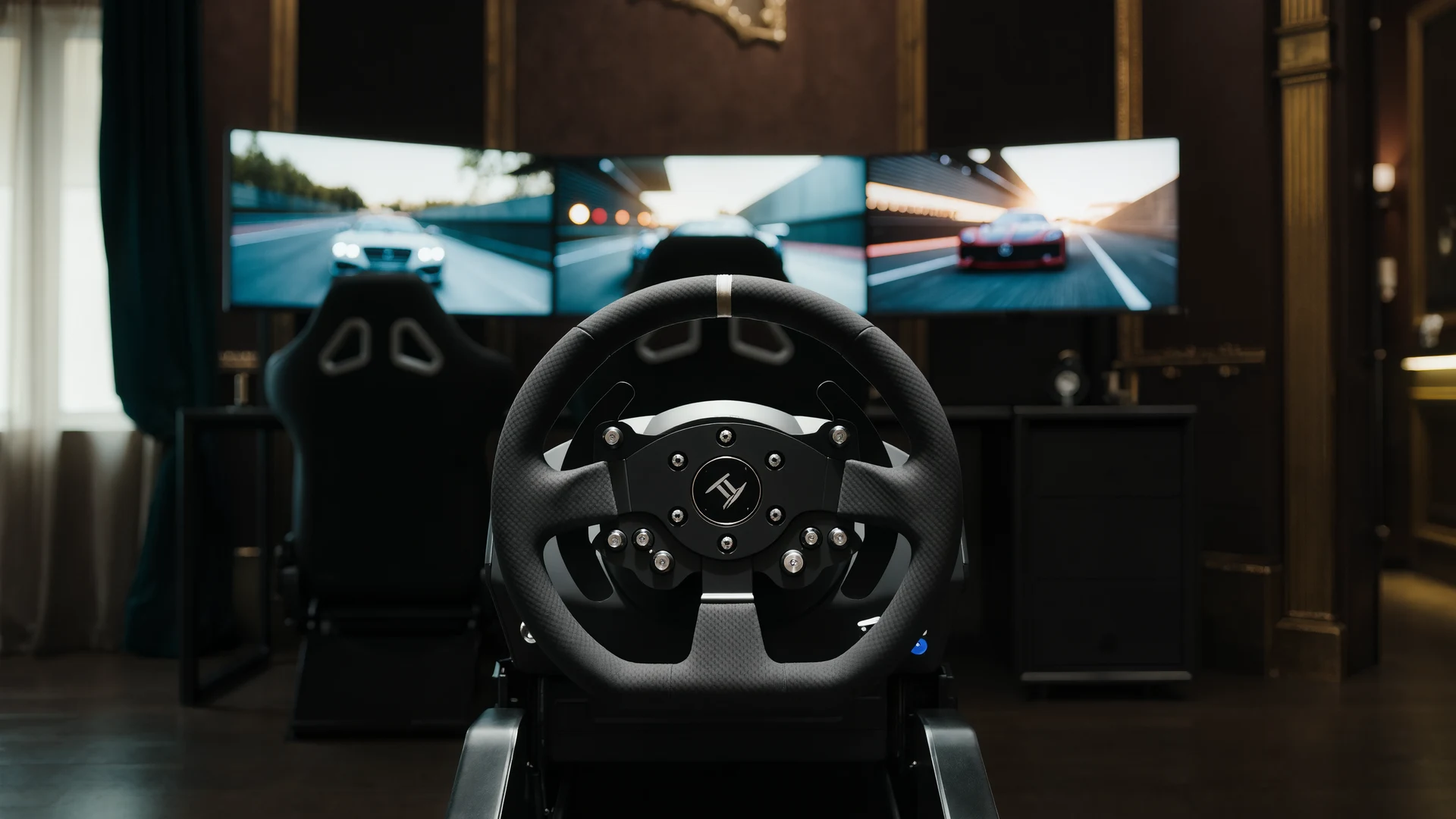
Sim Racing VR vs Triples Guide
VR vs triple monitors for sim racing in 2026: compare Quest 3, Pimax Crystal Light and triple 1440p setups on field of view, depth, comfort, cost and …
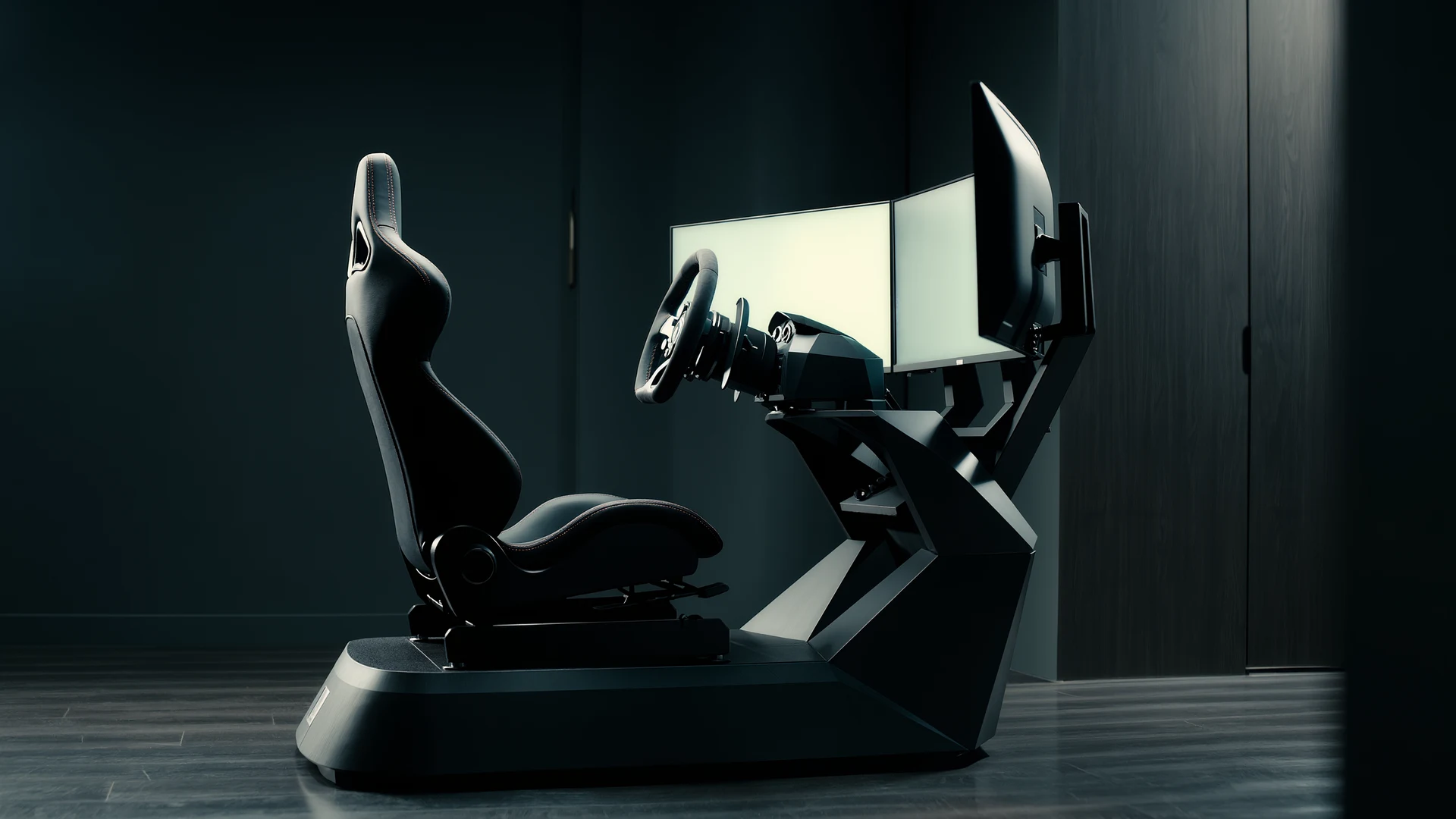
Sim Racing Motion Platforms Guide
Sim racing motion platforms guide: compare seat movers, chassis movers, D-BOX, PT Actuator, and bass shakers, with prices from $150 to $20,000-plus an…
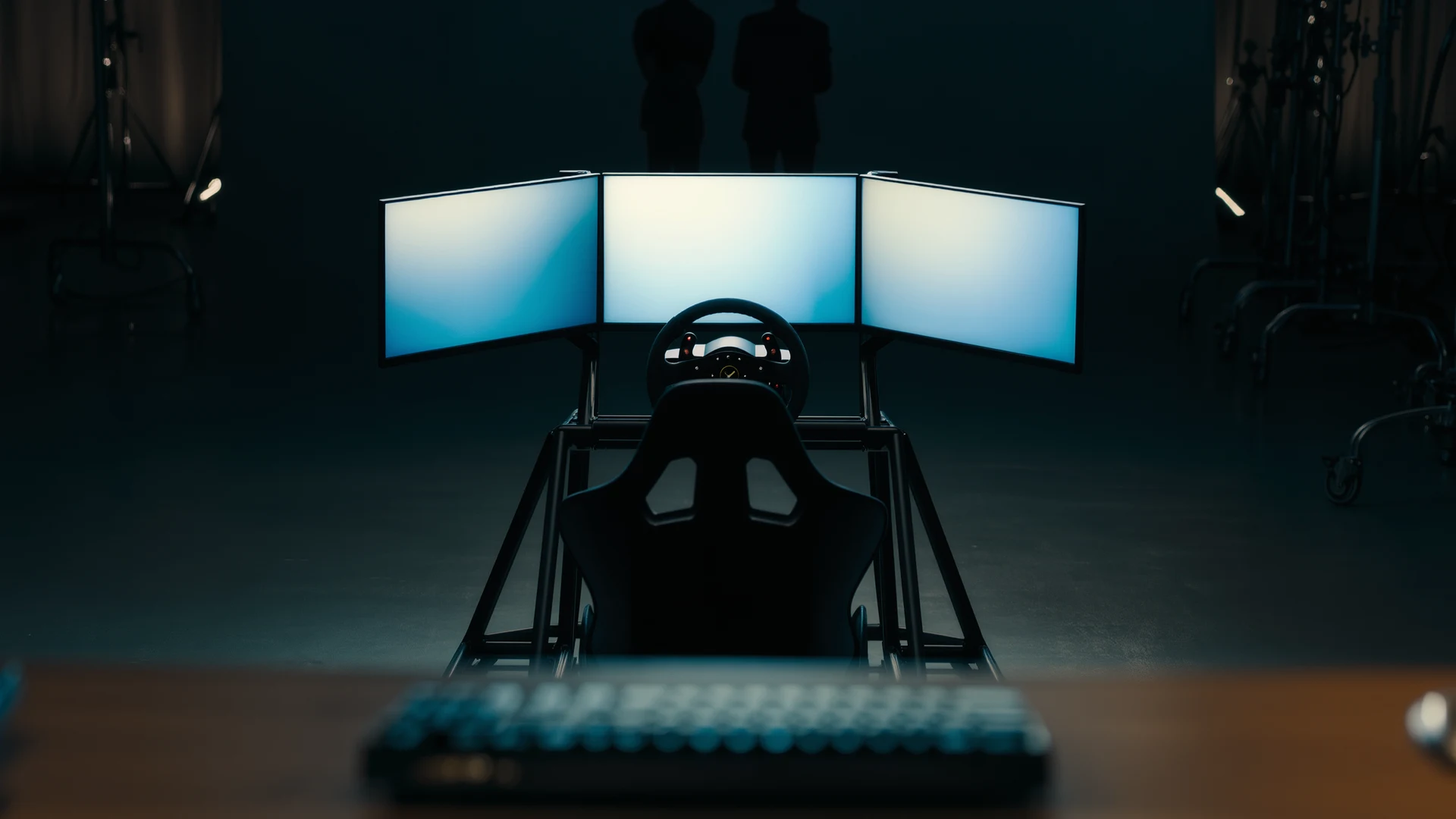
Sim Racing Cockpit Setup Guide
Sim racing cockpit setup guide: compare folding rigs, wheel stands, full cockpits and aluminum profile, plus seats, ergonomics and field-of-view tips.…